

If you run a brick-and-mortar shop, you already know that Google reviews are the #1 trust signal for local customers walking past your door or searching your name on their phone. The problem? Even happy customers rarely leave a review unless you make it stupidly easy. That’s exactly what a Google review QR code does: one scan, one tap, one review.
In this tactical guide, we’ll walk you through generating your Google review QR code, printing it on the right materials (receipts, counter cards, stickers), and placing it strategically in-store so reviews start flowing in on autopilot. We break it down further here.
What Is a Google Review QR Code (and Why You Need One)
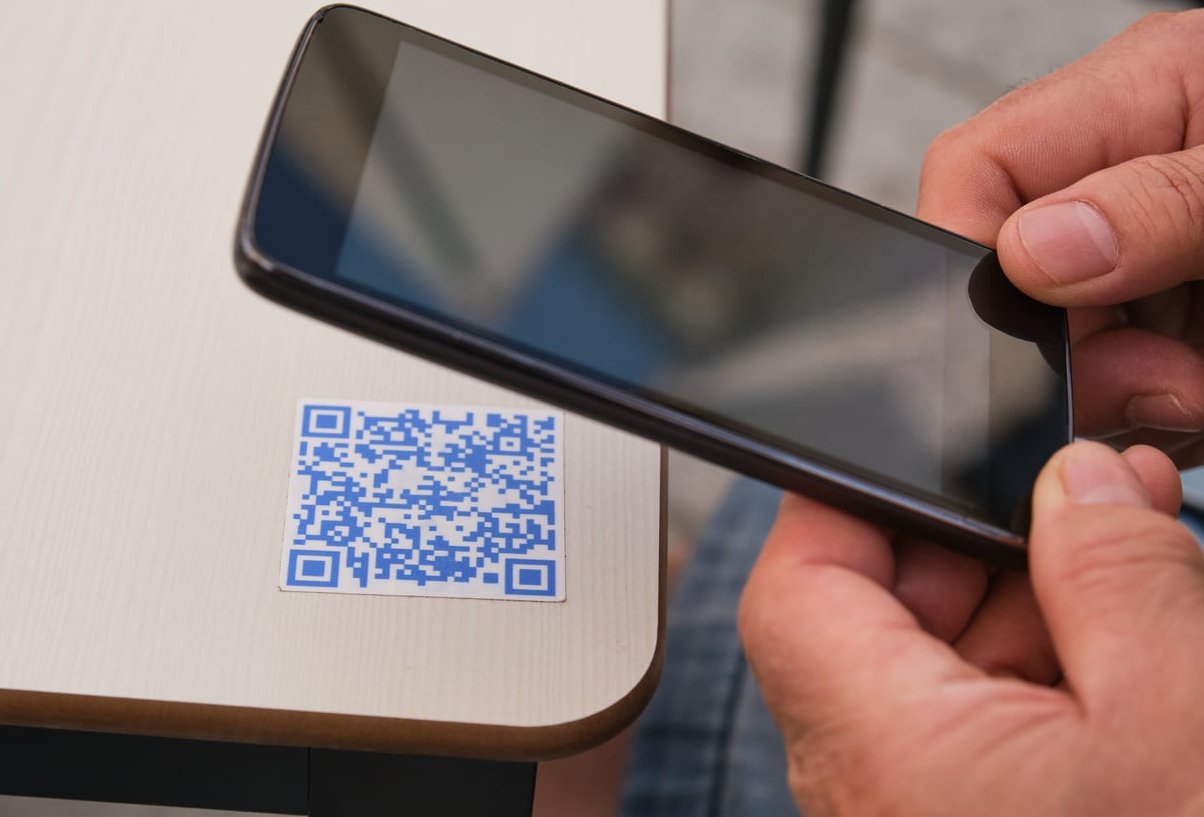
A Google review QR code is a scannable code that links directly to the review page of your Google Business Profile. When a customer points their smartphone camera at it, they’re taken straight to the “Rate and review” pop-up — no searching, no typing, no friction.
Here’s why it works so well for local shops:
- Zero friction: Customers don’t need to search for your business on Google.
- Passive system: Once printed and placed, it works 24/7 without staff intervention.
- Higher conversion: Shops using in-store QR codes typically see 3 to 5 times more reviews per month.
- Better local SEO: More (and fresher) reviews boost your ranking in Google Maps.
Step 1: Get Your Google Review Link
Before generating any QR code, you need your unique review URL. Here are the two easiest methods:
Method A: Directly from Google Business Profile
- Sign in to your Google Business Profile at business.google.com.
- Select the location you want to manage.
- Click “Ask for reviews” (or use the search bar in Google Maps to find your business).
- Google will display a short shareable link like g.page/r/xxxxxxx/review.
- Copy that link.
Method B: Using Google Maps (if you don’t have GBP dashboard access handy)
- Search your business on Google Maps.
- Click the “Write a review” button.
- Copy the full URL from your browser bar. That’s your review link.
Step 2: Generate Your Google Review QR Code
Now paste that review link into a QR code generator. There are dozens of free options; here are the most reliable ones as of 2026:
| Tool | Free Plan | Custom Logo | Best For |
|---|---|---|---|
| The QR Code Generator | Yes | Yes | Quick static codes |
| Me-QR | Yes | Yes | Styled QR codes |
| QRCodeChimp | Limited | Yes | Analytics tracking |
| Canva | Yes | Basic | Designing full cards |
Pro tip: Always download your QR code in SVG or high-resolution PNG (at least 1000×1000 px) so it prints crisp on any size, from receipt to poster.

Step 3: Test Before You Print
This step is skipped by 90% of business owners and it’s a costly mistake. Before ordering 500 counter cards:
- Scan the QR code with at least 3 different phones (iPhone, Android, older device).
- Confirm it opens the review pop-up directly, not just your business listing.
- Ask a friend outside your Wi-Fi network to test it too.
Step 4: Where to Print Your Google Review QR Code
Placement is everything. A QR code hidden behind the register does nothing. Here are the highest-performing print supports:
1. Receipts
Print the QR code at the bottom of every receipt with a short call-to-action such as “Loved your visit? Scan to leave a quick review, it takes 10 seconds!” This is the #1 passive channel because customers get the receipt when their satisfaction is highest.
2. Counter Cards / Table Tents
Small acrylic stands (10×15 cm) placed right next to the payment terminal. Customers waiting for their card to process have nothing else to do, they scan.
3. Stickers on the Door or Window
Great for repeat customers who forgot to review last time. Add text like “See you soon, leave us a review!”
4. Business Cards
Add the QR code on the back of your business card. Free real estate. This write-up is worth a look.
5. Packaging or Takeaway Bags
If you’re a restaurant, bakery or retail shop with takeout, stick a small label with the QR code on every bag or box.
Step 5: Strategic Placement Inside Your Shop
The rule is simple: place the QR code where customers have idle time and positive emotion.
| Location | Effectiveness | Why |
|---|---|---|
| Payment counter | Excellent | Idle time + fresh satisfaction |
| On restaurant tables | Excellent | Waiting for the check |
| Restroom mirror | Good | Captive audience |
| Exit door | Good | Last impression |
| Fitting room | Very Good | Private + engaged |

Step 6: Train Your Staff (the Silent Multiplier)
A QR code alone gets scanned. A QR code plus a simple sentence from your staff gets scanned 3x more. Teach your team a natural closing line like:
“If you had a great time today, our little QR code right here takes 10 seconds. It really helps our shop!”
Common Mistakes to Avoid
- Using a generic link that opens your listing instead of the review form.
- Printing too small: QR codes below 2 cm x 2 cm often fail to scan.
- Offering incentives (discounts, freebies) in exchange for reviews. This violates Google’s policy and can get your reviews wiped.
- Never checking the code again after 6 months. Reprint if smudged, faded or torn.
- Placing it too high or too low: keep it at eye level or hand level.

Bonus: Track Your Results
Use a dynamic QR code (offered by tools like QRCodeChimp or Me-QR Pro) to see exactly how many scans your code gets per day, per location. This lets you A/B test placements and messages, and prove ROI to yourself.
Realistic Expectations
Most local shops implementing this full system see:
- 2 to 4 new reviews per week in the first month
- A jump of 0.2 to 0.5 stars in average rating within 90 days (assuming service is solid)
- 15 to 30% more Google Maps clicks after 6 months of consistent review flow
FAQ
Can I make a Google review QR code for free?
Yes. Grab your review link from Google Business Profile, paste it into any free QR generator like The QR Code Generator or Me-QR, and download the image. Zero cost. For a real-world example, look at one agency that does this well.
Do QR codes expire?
Static QR codes never expire. Dynamic QR codes (which allow tracking and link editing) may expire if you stop paying the subscription, so read the terms carefully.
Is it against Google’s rules to ask for reviews with a QR code?
No, Google explicitly encourages it and even provides its own short link and QR code tool inside Google Business Profile. What’s forbidden is paying for reviews or filtering out negative ones.
What size should my printed QR code be?
Minimum 2.5 cm x 2.5 cm (1 inch x 1 inch) for close-range scanning like receipts or table tents. For window stickers or posters, aim for 5 cm x 5 cm or larger.
Can one QR code work for multiple store locations?
No. Each location has its own Google Business Profile, so each shop needs its own unique review QR code. Never mix them or you’ll dilute your local rankings.
What if a customer leaves a bad review after scanning?
Respond publicly, professionally, and quickly. A well-handled negative review often converts more prospects than a perfect 5-star average, it shows you care.
Final Thoughts
A Google review QR code is one of the highest-ROI marketing assets a local shop can deploy in 2026. It costs almost nothing, it works while you sleep, and it compounds over time as your review count builds trust with every new customer walking by your storefront. dingdoong.io has a solid rundown on this.
Set it up this week, place it in 3 to 5 strategic spots, train your team on one simple sentence, and watch your review count (and your walk-ins) climb.